Tutorial

How Jacklyt Prompts works

Choose a ready-made prompt template, customize the fields, copy the final prompt and use it in your favorite AI chat.

From template to final prompt

The builder turns simple choices into a complete, structured prompt that is ready to copy.

Copy prompt

A simple 5-step workflow

Each template contains smart fields. You only choose the options you want, and Jacklyt Prompts builds the full prompt for you.

Step 1

Choose a prompt template

Browse the prompt gallery and select the template that matches what you want to create: people, pets, landscapes, food or funny edits.

/tutorial/01-choose-template.png
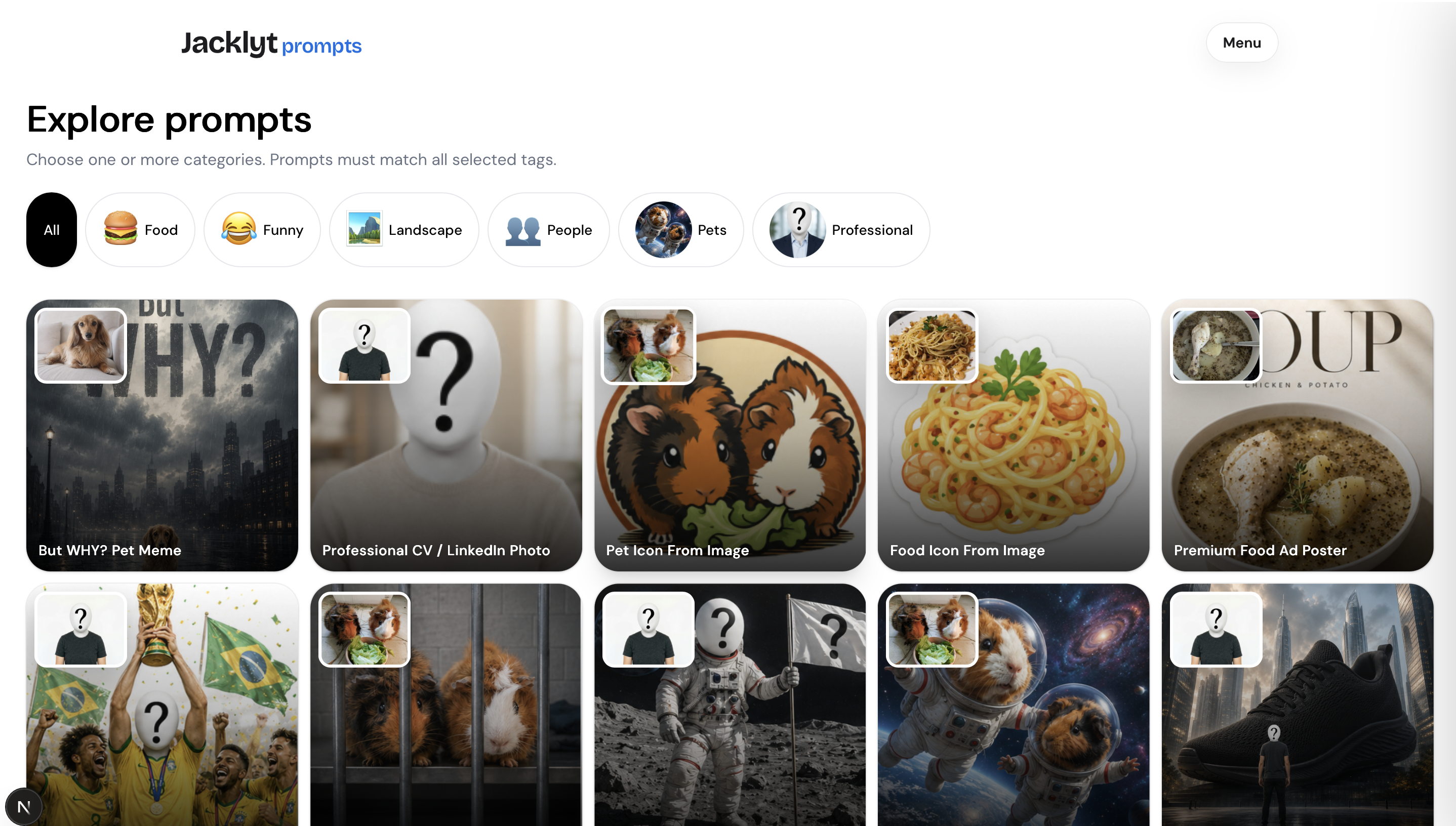
Screenshot of the prompt template gallery

Browse the prompt gallery and select the template that matches what you want to create: people, pets, landscapes, food or funny edits.
Step 2

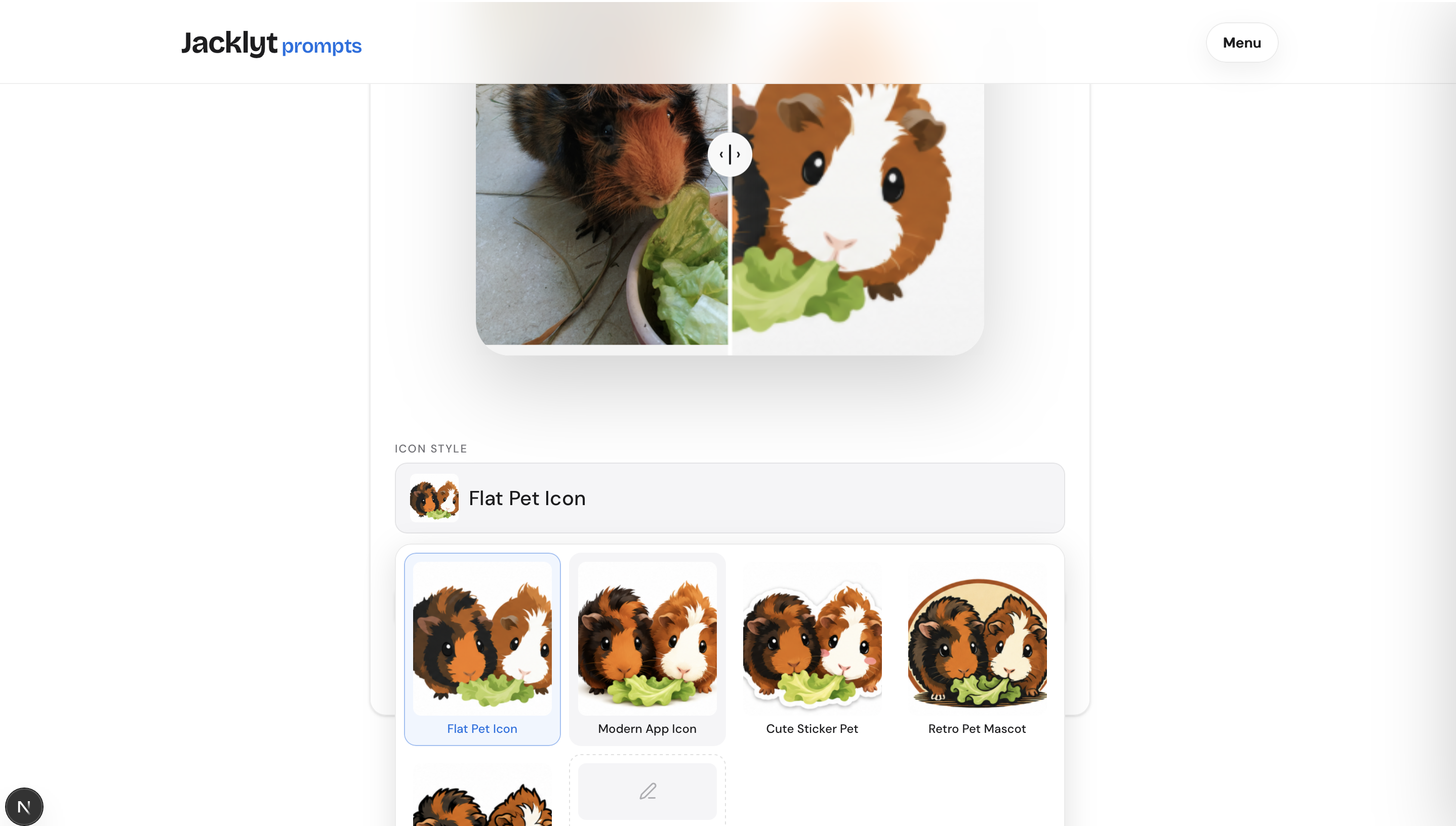
Open the Prompt Builder

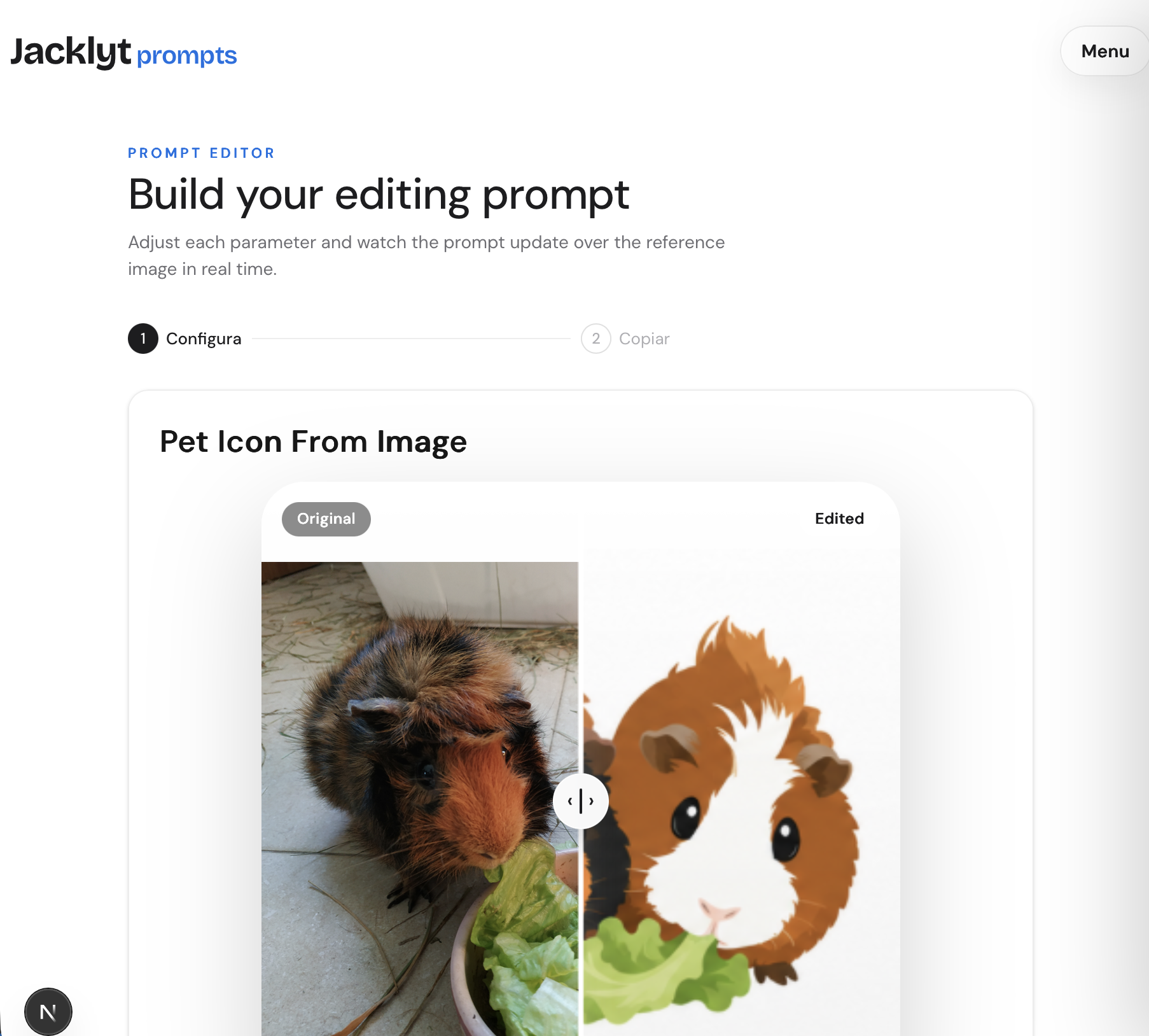
Inside the template page you will see the builder, preview images and all the available customization fields.

/tutorial/02-open-builder.png
Screenshot of a prompt template page with the builder

Inside the template page you will see the builder, preview images and all the available customization fields.

Step 3

Customize the fields

Select the style, aspect ratio and other options.

/tutorial/03-customize-fields.png
Screenshot of prompt fields and image upload controls

Select the style, aspect ratio and other options.

Step 4

Copy the generated prompt

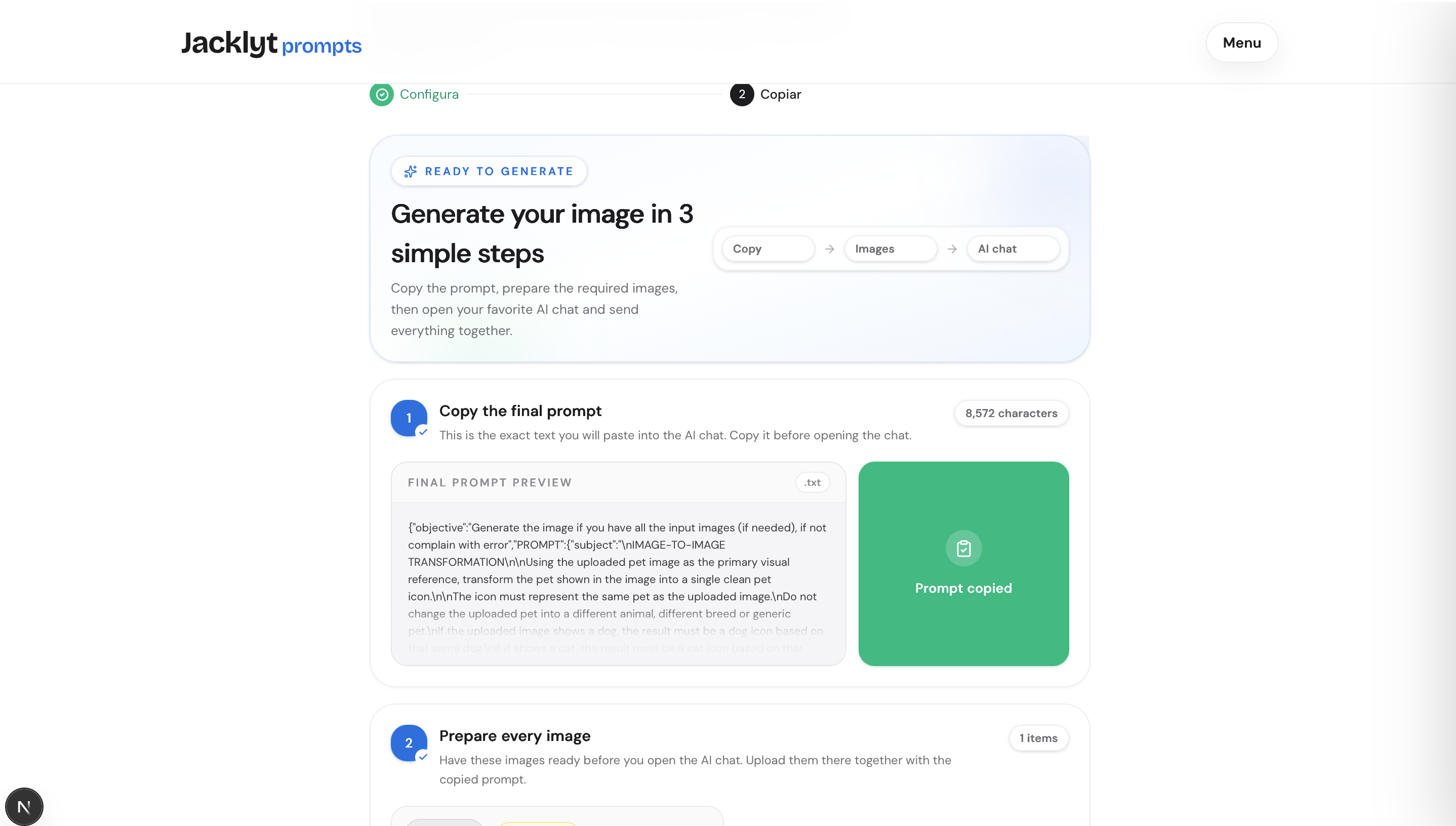
The final prompt updates with your choices. Copy it when everything looks correct.

/tutorial/04-copy-prompt.png
Screenshot of the generated prompt copy area

The final prompt updates with your choices. Copy it when everything looks correct.

Step 5

Paste it into your AI chat

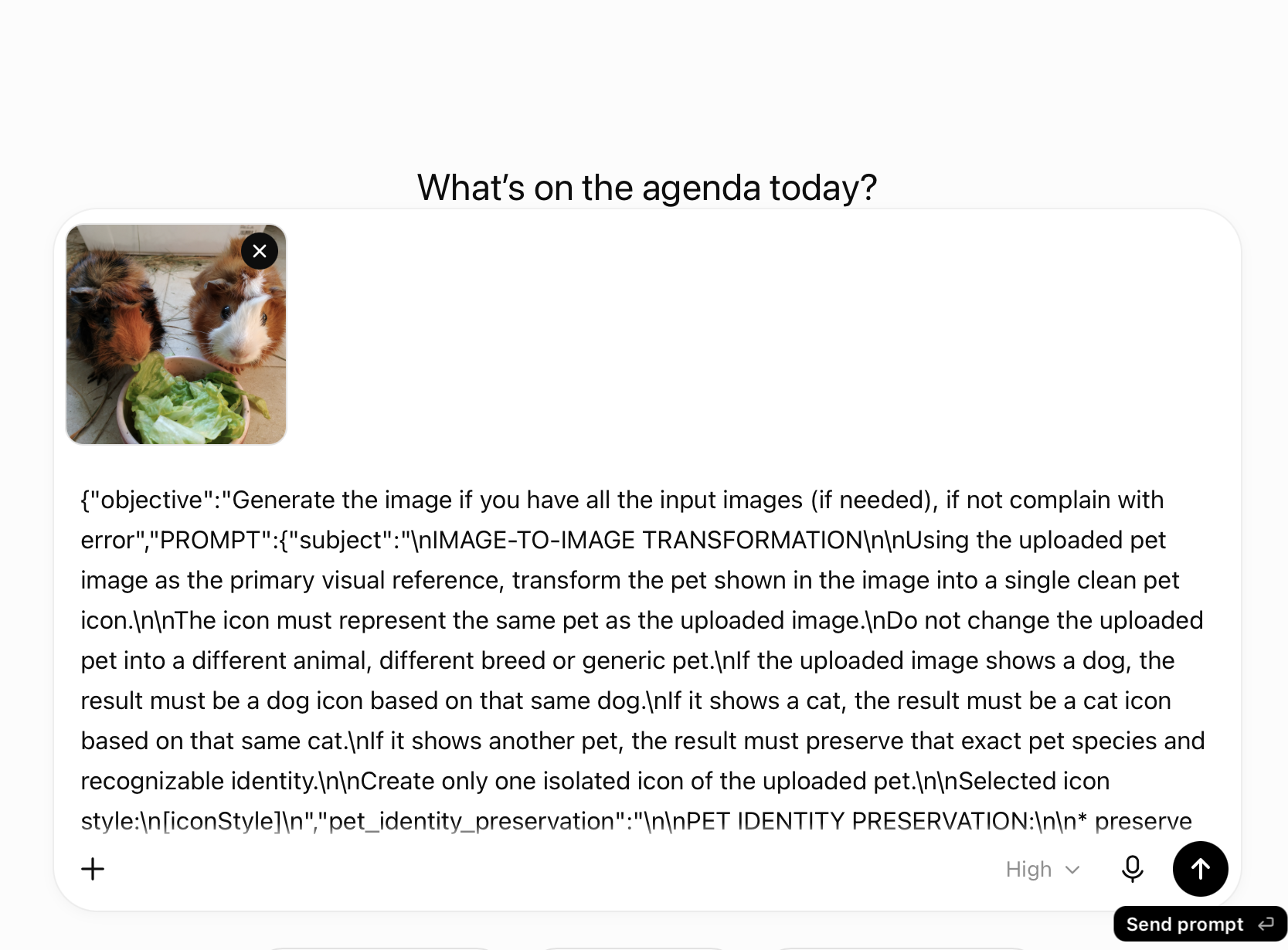
Paste the prompt into ChatGPT or any compatible AI image tool. When required, attach the same images you uploaded in the builder.

/tutorial/05-paste-in-ai-chat.png
Screenshot of the prompt pasted into an AI chat

Paste the prompt into ChatGPT or any compatible AI image tool. When required, attach the same images you uploaded in the builder.

Tips for better results

Small details in your inputs can make the generated prompt much more precise.

1

Use clear images

When a template needs a photo, use a sharp image where the subject is easy to see.

2

Choose one strong style

The selected options guide the final prompt, so pick the style that best matches the result you want.

3

Copy the complete prompt

Do not remove sections from the generated prompt unless you know exactly what you want to change.

Ready to generate your next prompt?

Start with a template, customize it in seconds and copy a professional prompt without writing it from scratch.

Explore prompts