How to Transform Photos with AI Prompts
A practical workflow for image-to-image prompting that changes style or scene while preserving identity, pose and the important details from the original photo.
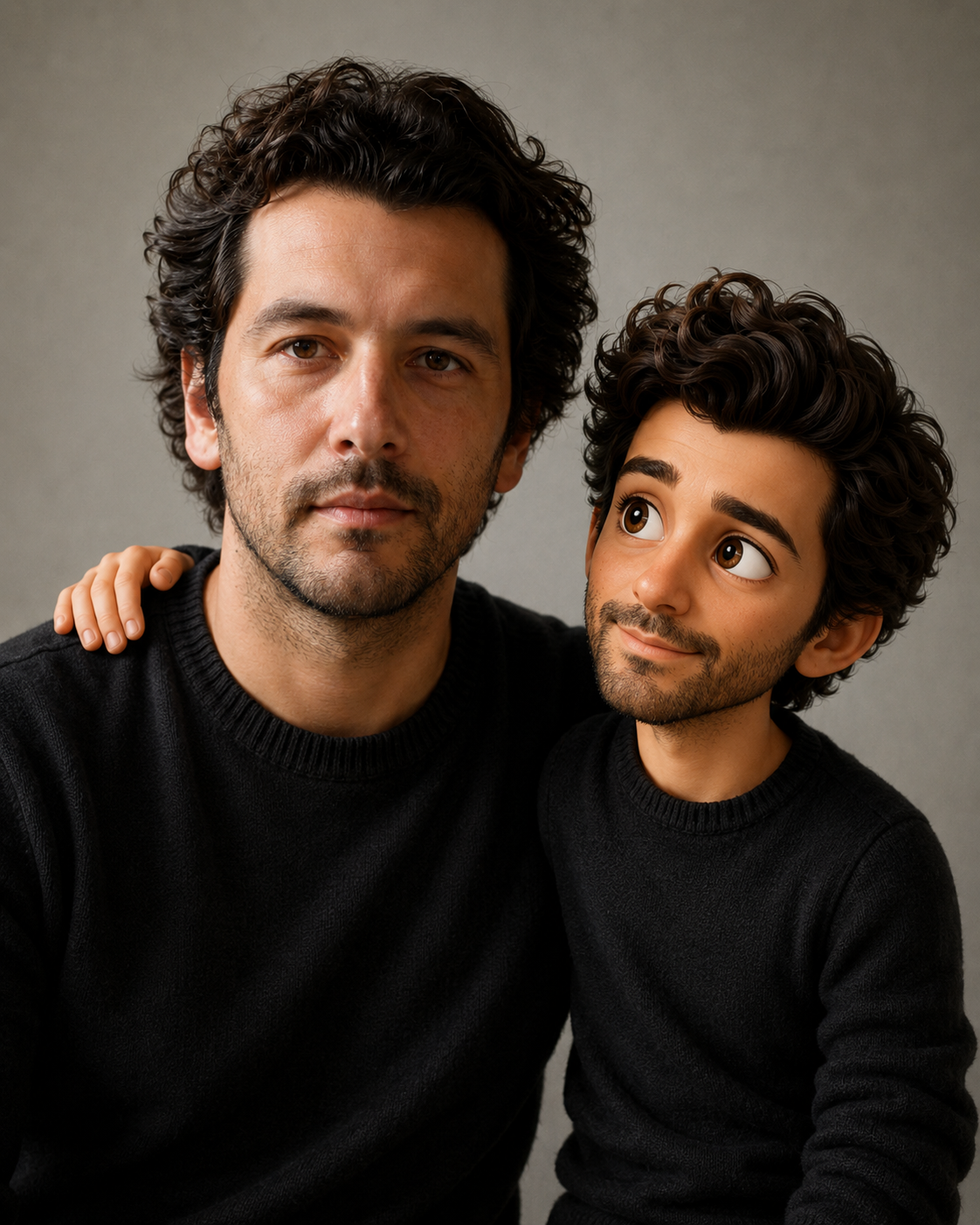
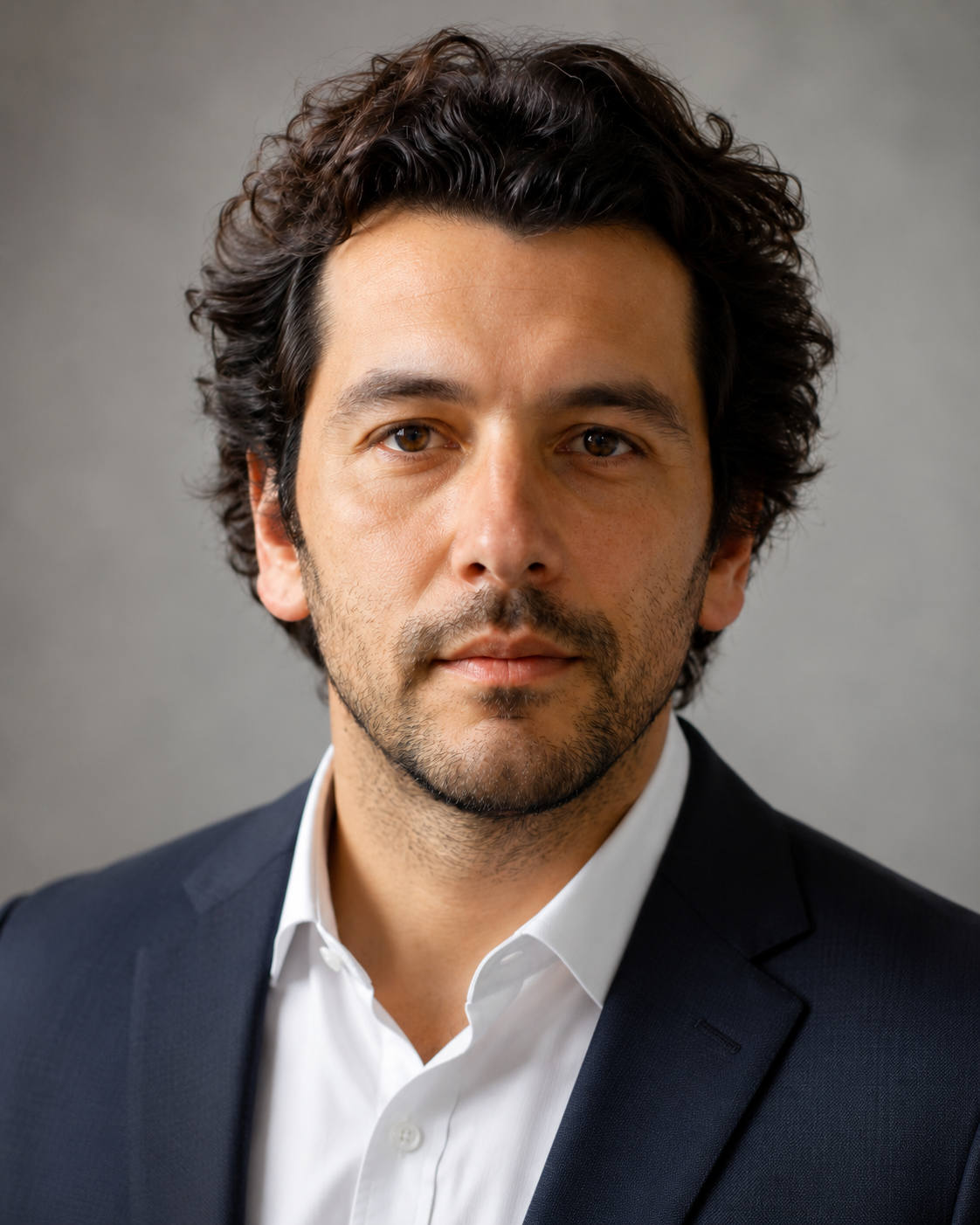
Transforming a photo with AI is different from generating a new image from scratch. The uploaded image already contains identity, composition, colors and context. A good transformation prompt tells the model what to keep, what to change and how far the edit should go. Without those limits, the result may look impressive but lose the thing that made the original photo useful. A pet becomes a different breed, a person becomes a stranger, a landscape gets replaced by fantasy mountains, or a product changes shape.
Use keep, change and remove
The cleanest structure for photo transformation is simple: keep, change, remove. Keep describes the identity and important details. Change describes the new style, background or mood. Remove blocks distractions and common model mistakes.
- Keep: face, fur markings, product shape, pose, key colors.
- Change: style, lighting, background, clothing, weather or illustration finish.
- Remove: clutter, logos, text, extra people, objects that weaken the result.
- Validate: say what would make the output invalid.
A practical image-to-image prompt
Use the uploaded photo as the main reference.
Keep: the same person, face shape, hairstyle, pose and general expression.
Change: transform the scene into a warm editorial portrait with soft window light and a simple neutral background.
Remove: busy room details, logos, text, extra people and distracting objects.
Style: realistic, natural skin texture, subtle retouching, clean composition.
Invalid result: the person looks like someone else, the background becomes crowded, or the image contains fake text.
Control how far the edit should go
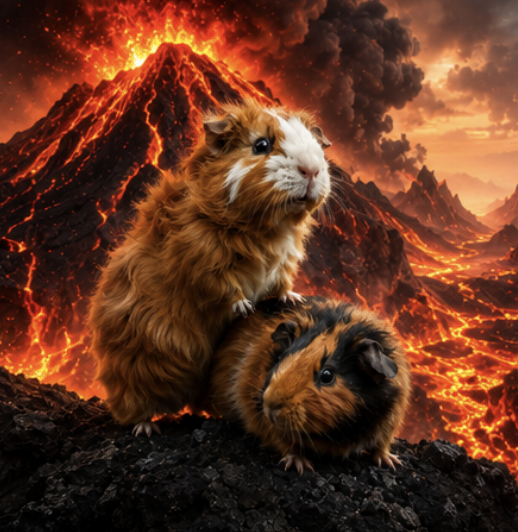
Some edits should be light: cleaner background, better lighting, more polished crop. Others can be dramatic: turning a pet into an icon, changing a landscape into a cinematic scene, or making a funny poster from a couple photo. The prompt should say whether the result should feel like an edit of the original photo or a complete stylized transformation.
Bad prompt vs better prompt
Weak:
Make this photo look cooler.

Better:
Use the uploaded street photo as the reference. Keep the same person, pose, jacket color and urban setting. Change the lighting to cinematic blue hour with soft neon reflections on the pavement. Clean up background clutter but keep the street realistic. Avoid changing the face, adding text, extra people, fake logos, distorted hands or a fantasy background.“The reference image is not decoration. It is the contract the prompt should protect.”
Common photo transformation mistakes
- Only describing the new style and forgetting what should stay the same.
- Using a messy source photo without asking the model to remove clutter.
- Changing too many things at once, making it hard to diagnose what failed.
- Leaving validation rules out of the prompt.
Best use cases
Photo transformation prompts are ideal for profile pictures, pet portraits, product mockups, food styling, landscape enhancement and playful edits for friends. They are especially useful when you like the subject of the original photo but want a cleaner or more imaginative final image.
Frequently asked questions
What should I write first?
Start with what must stay the same. The style can come after that.
Can I remove the background?
Yes. Say whether you want a plain background, studio background or a new scene.
Why does the output stop looking like the photo?
The transformation request is probably stronger than the preservation rules. Add clearer identity constraints.
Should I regenerate or rewrite?
If the result is close, edit one section and regenerate. If the concept is wrong, rewrite the prompt structure.
Transform photos with more control
Use a structured template to decide what stays, what changes and what must disappear.
Explore transformation prompts