Negative Prompts for AI Image Generation
A practical guide to using negative prompts to reduce extra text, logos, distorted anatomy, clutter, wrong styles and common AI image artifacts.
A negative prompt is not a trash bin for every word you dislike. It is a short quality-control list. The best negative prompts block the errors that are most likely to appear in a specific image: text on an icon, plastic skin on a portrait, fake steam on food, extra animals in a pet image or impossible geometry in a landscape. When negative prompts are too long, they can become noisy. When they are too vague, they do not protect the result. The useful version sits in the middle: specific, practical and connected to the image you are making.
Block likely errors, not everything
A portrait, a food shot and a landscape do not need the same negative prompt. If you reuse one massive list everywhere, you may block things that do not matter and miss the errors that do. Start with the category and write the negative prompt around the weakest points of that category.
- Portraits: plastic skin, changed identity, distorted eyes, extra fingers, fake text.
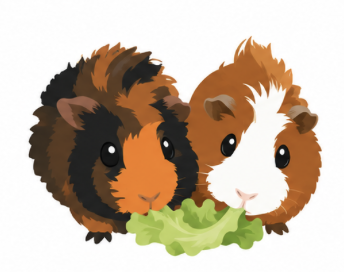
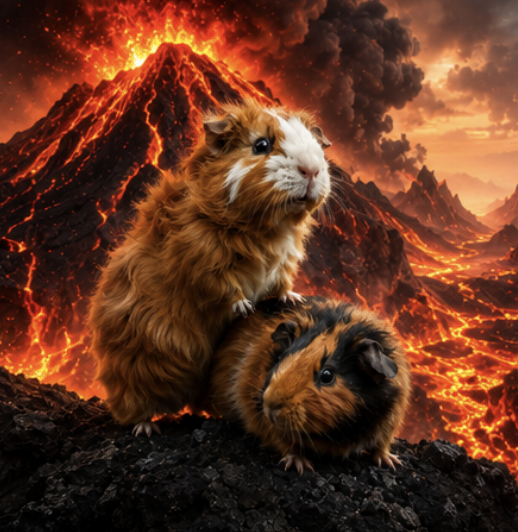
- Pets: wrong breed, extra animals, changed markings, human face, messy fur.
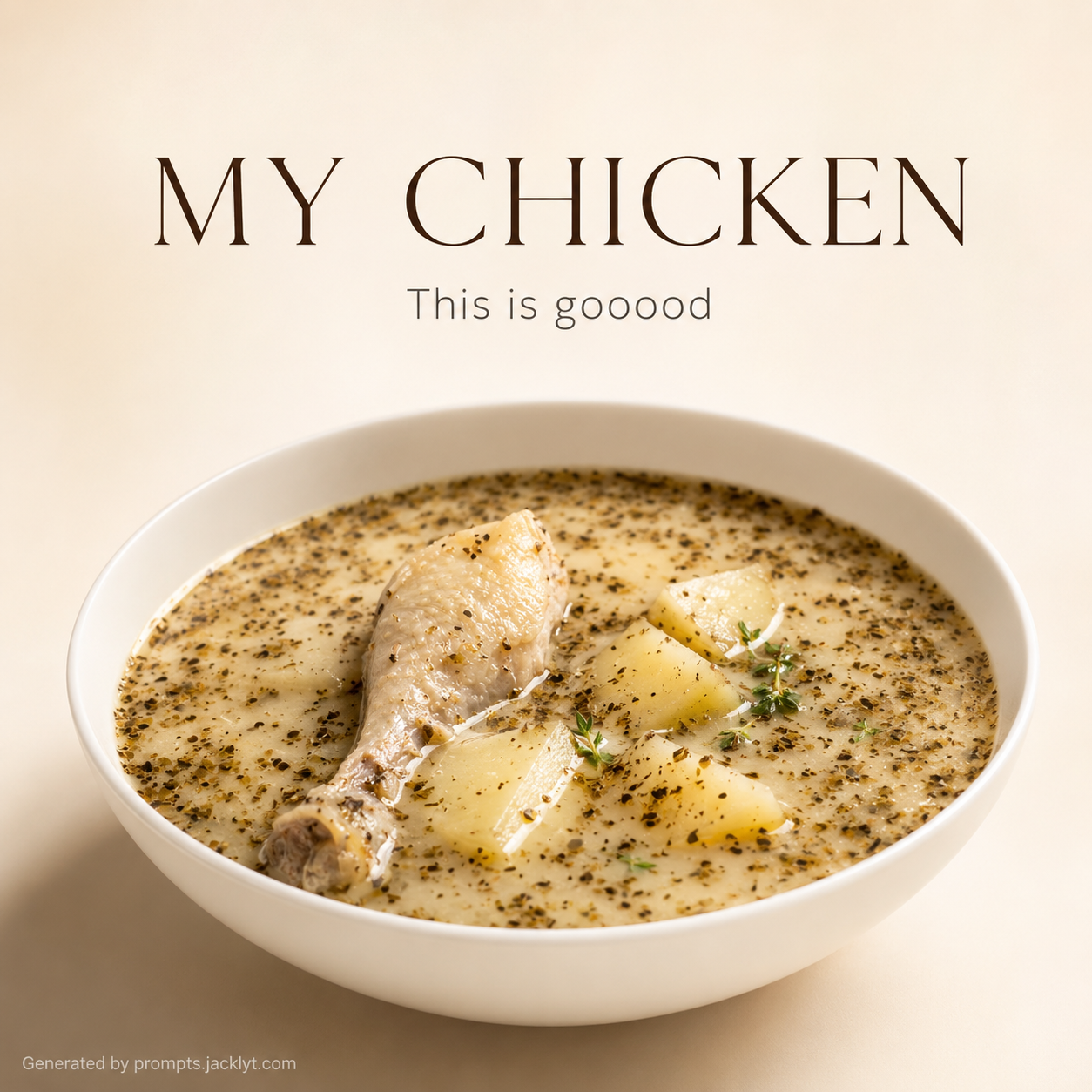
- Food: plastic texture, fake steam, oversaturated sauce, extra plates, text.
- Landscapes: impossible mountains, neon sky, duplicated sun, fake HDR, text.
Category-specific negative prompt examples
Pet icon:
Negative prompt: photo background, room, sofa, extra animals, wrong species, wrong breed, changed markings, human clothing, text, logo, blurry edges, clutter.

Profile picture:
Negative prompt: changed identity, plastic skin, heavy retouching, fake corporate badge, unreadable text, extra people, distorted hands, over-smoothed face.

Food photo:
Negative prompt: plastic food, fake steam, messy sauce explosion, extra dishes, distorted plate, oversaturated colors, text, logo, dirty table.

Landscape:
Negative prompt: fantasy castle, floating islands, neon colors, duplicated sun, impossible terrain, fake HDR, people, text, watermark.
Shorter is often stronger
A focused negative prompt is easier to maintain. If you add every defect you have ever seen, the list becomes less useful. Keep the words that actually match the current image. For example, “extra fingers” matters in a portrait with visible hands, but it is pointless in a close-up pet icon where no hands should exist.
Bad negative prompt vs better negative prompt
Weak:
Bad quality, ugly, weird, wrong, mistakes, low quality.

Better for a pet portrait:
wrong species, wrong breed, changed fur markings, extra pets, human eyes, collar text, busy background, distorted face, blurry fur, low detail.“A negative prompt should protect the image, not panic about every possible defect.”
Common negative prompt mistakes
- Using the same negative prompt for every image category.
- Adding vague words like bad or ugly without naming visible problems.
- Blocking useful elements by accident, such as shadows, texture or realistic imperfections.
- Deleting the negative prompt after one good generation.
A simple workflow
Generate once with a short negative prompt. Look at the result and add only the errors that actually appeared. If the model keeps adding fake text, add “text, caption, logo, watermark.” If it keeps changing identity, add stronger preservation rules in the main prompt, not only in the negative prompt.
Frequently asked questions
Do negative prompts always improve results?
No. They help when they block specific recurring errors. A vague negative prompt may do very little.
How long should a negative prompt be?
Usually one compact line is enough. Add more only when the image category needs it.
Should I put identity rules in the negative prompt?
Put identity preservation in the main prompt. Use the negative prompt to block wrong species, wrong face or changed markings.
Can a negative prompt make images worse?
Yes, if it blocks useful visual qualities or becomes too broad. Keep it specific.
Use cleaner prompt constraints
Start with a template that already includes the negative rules needed for each image type.
Explore structured prompts