

Prompt guide
Complete guide for Professional CV / LinkedIn Photo
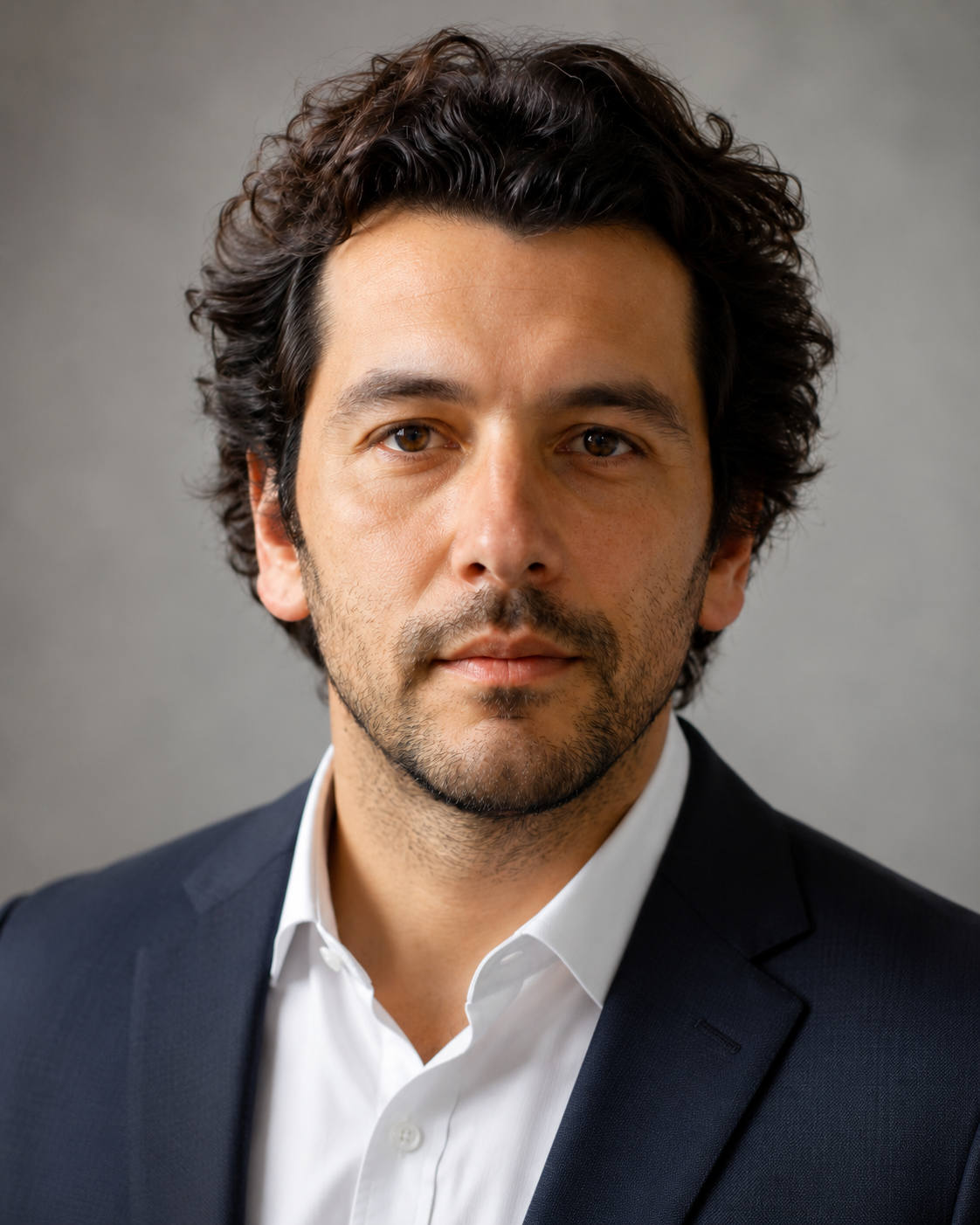
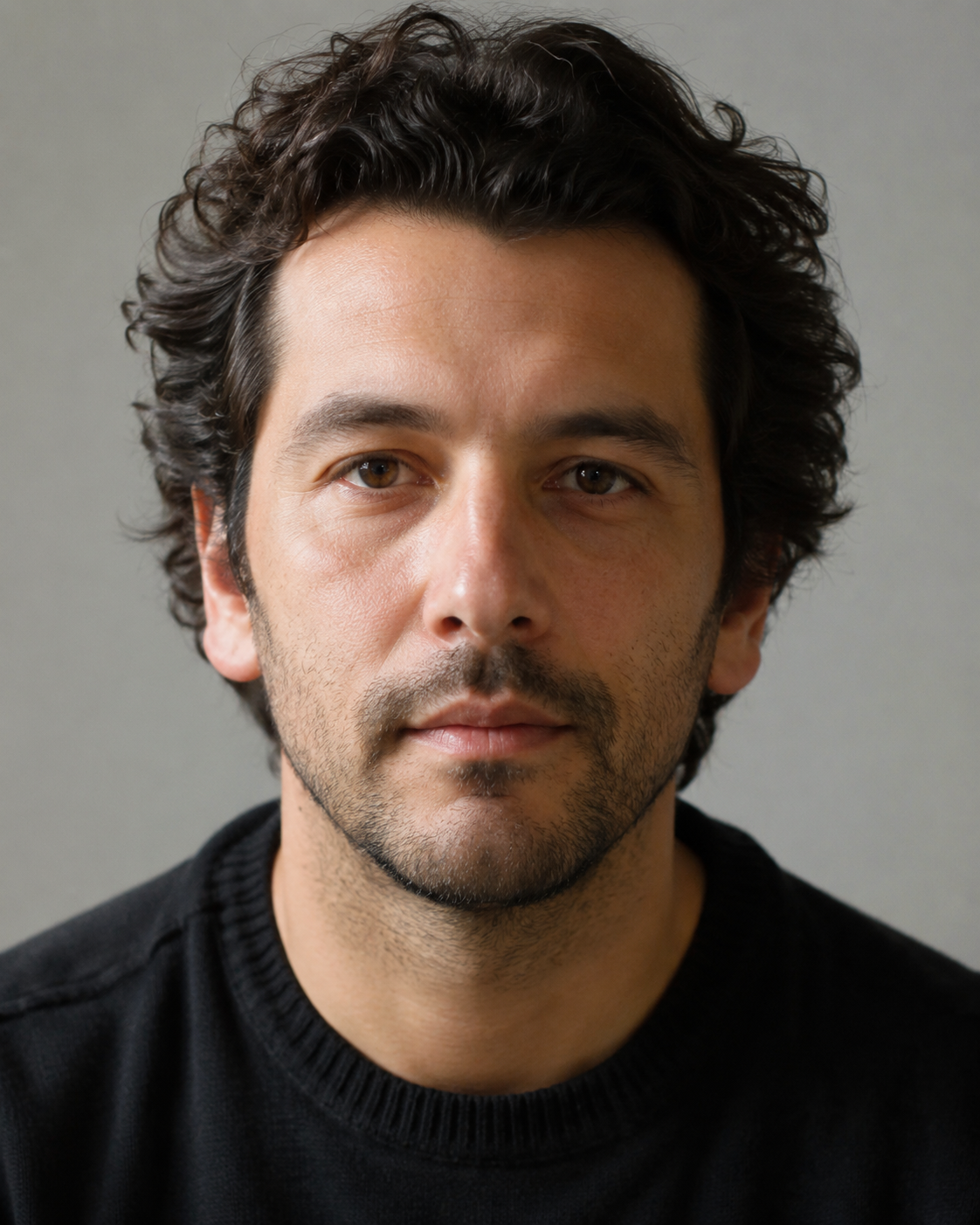
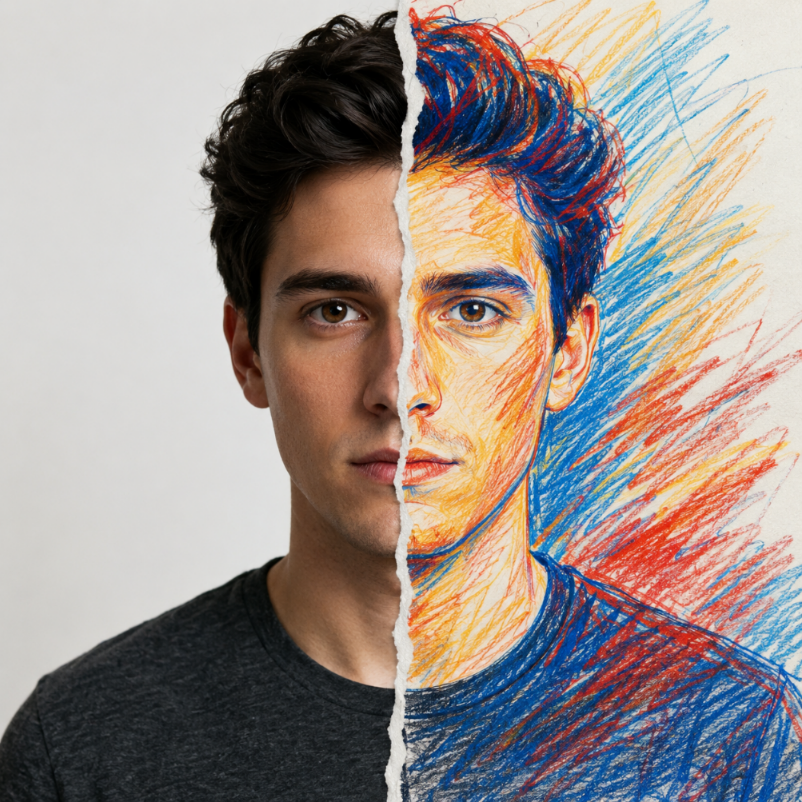
The Professional CV / LinkedIn Photo prompt converts an uploaded portrait into a realistic, polished headshot suitable for CVs, LinkedIn profiles, professional bios, portfolio pages, company directories and personal websites. It is not designed to create an illustrated avatar or an over-edited glamour image. Its purpose is to preserve the person's real identity while improving the professional presentation: cleaner lighting, stronger framing, an appropriate outfit direction and a background that feels credible for business or career use.
This template works well because it gives users controlled choices without requiring them to understand photography terms. The Headshot Style field can create a modern LinkedIn look or a warmer approachable portrait. The Background Style field can move the image toward a neutral studio, soft gray professional backdrop, blurred office or warm indoor setting. The Outfit Style field lets the user choose formal business, smart casual, creative professional or keep the original outfit. These choices change the mood and context of the portrait while the prompt keeps the face, facial proportions, hair, age impression and expression grounded in the uploaded image.
The prompt includes strict validation rules that are important for professional use: one person, realistic rendering, clear face and eyes, no text, no logos, no business-card layout, no messy background and no unrealistic retouching. This makes it suitable for people who need a better profile image but do not want an AI result that looks fake. The structure also helps reduce common problems in AI headshots, such as changed identity, plastic skin, distorted facial features, overly dramatic lighting or backgrounds that feel like stock-photo clichés. For SEO, this page is valuable for users searching for AI LinkedIn photo prompts, CV headshot prompts and professional profile image generators.
How to use this prompt
- 1
Upload a clear portrait where the face is visible and not covered by sunglasses, heavy shadows or extreme angles.
- 2
Select the headshot, background and outfit options according to the platform. LinkedIn and CVs usually benefit from neutral backgrounds and formal or smart casual clothing.
- 3
Copy the full prompt into your image tool with the uploaded photo and keep the realism, identity and no-text rules so the result stays suitable for professional use.
Best use cases
Refreshing a LinkedIn profile photo without scheduling a professional studio shoot.
Creating consistent headshots for portfolio pages, about pages, speaker bios or internal team directories.
Testing different professional impressions, from corporate and formal to warm, approachable or creative.
Tips for better results
Start with a photo that already resembles how you want to appear professionally; the prompt improves presentation but should not invent a new identity.
Use keep original outfit when clothing is already appropriate and you mainly need better lighting or background cleanup.
If the output looks too artificial, choose a softer background and avoid overly formal outfit changes on very casual source photos.
Common mistakes to avoid
Using a blurry selfie or a face that is too small often creates weak identity preservation.
Choosing an outfit style that conflicts with the original pose can make the edit look pasted on.
Removing the validation rules can produce avatars, business-card layouts, text overlays or unrealistic skin smoothing.
Final recommendation
Use this prompt when you need a credible professional headshot that improves presentation without changing who the person is. A clear source portrait and conservative style choices usually produce the strongest CV and LinkedIn results.