Prompt guide
Complete guide for Food Icon From Image
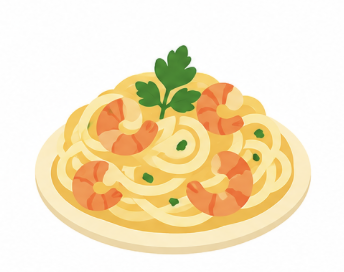
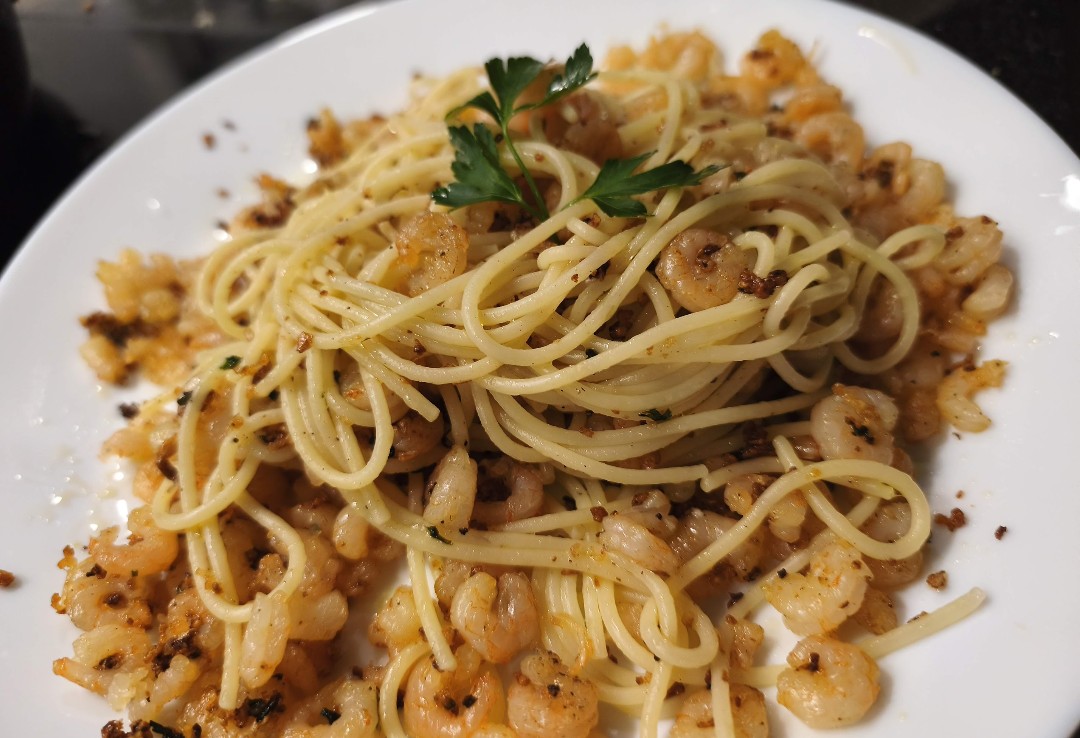
The Food Icon From Image prompt turns a real food photo into a clean, isolated illustration icon that can be used in menus, apps, websites, social posts, recipe cards, food delivery concepts and product previews. Instead of asking the AI to invent a generic burger, pasta, coffee cup or dessert, this template uses the uploaded image as the visual source and tells the model to preserve the actual food category, recognizable shape, key ingredients and overall structure. That makes the result much more useful when the user wants an icon based on a specific dish rather than a random food illustration.
This prompt is especially strong because it separates identity preservation from style selection. The uploaded food image defines what the icon must represent, while the Icon Style field controls the visual language. A pasta dish can become a flat fast-food icon, a premium app icon, a cute sticker, a retro diner symbol, a bold cartoon illustration or a soft semi-flat asset, but it should still read as the same pasta dish. The prompt also removes the most common causes of weak food icons: messy tables, plates that dominate the image, photographic texture, background clutter, multiple objects, labels and menu-style layouts. The final result should be one centered food icon on a pure white background, with crisp edges and enough empty space to crop or reuse.
For SEO and user experience, this template fits searches around AI food icons, image-to-icon prompts, food illustration prompts and restaurant visual assets. It is useful for creators who need a consistent set of food icons but do not want to write a detailed prompt every time. The structure tells the AI what to preserve, what to simplify and what to reject, which improves consistency across different dishes and styles. The aspect ratio selector helps users prepare square app icons, vertical mobile graphics or wider website visuals without rewriting the full prompt.
How to use this prompt
- 1
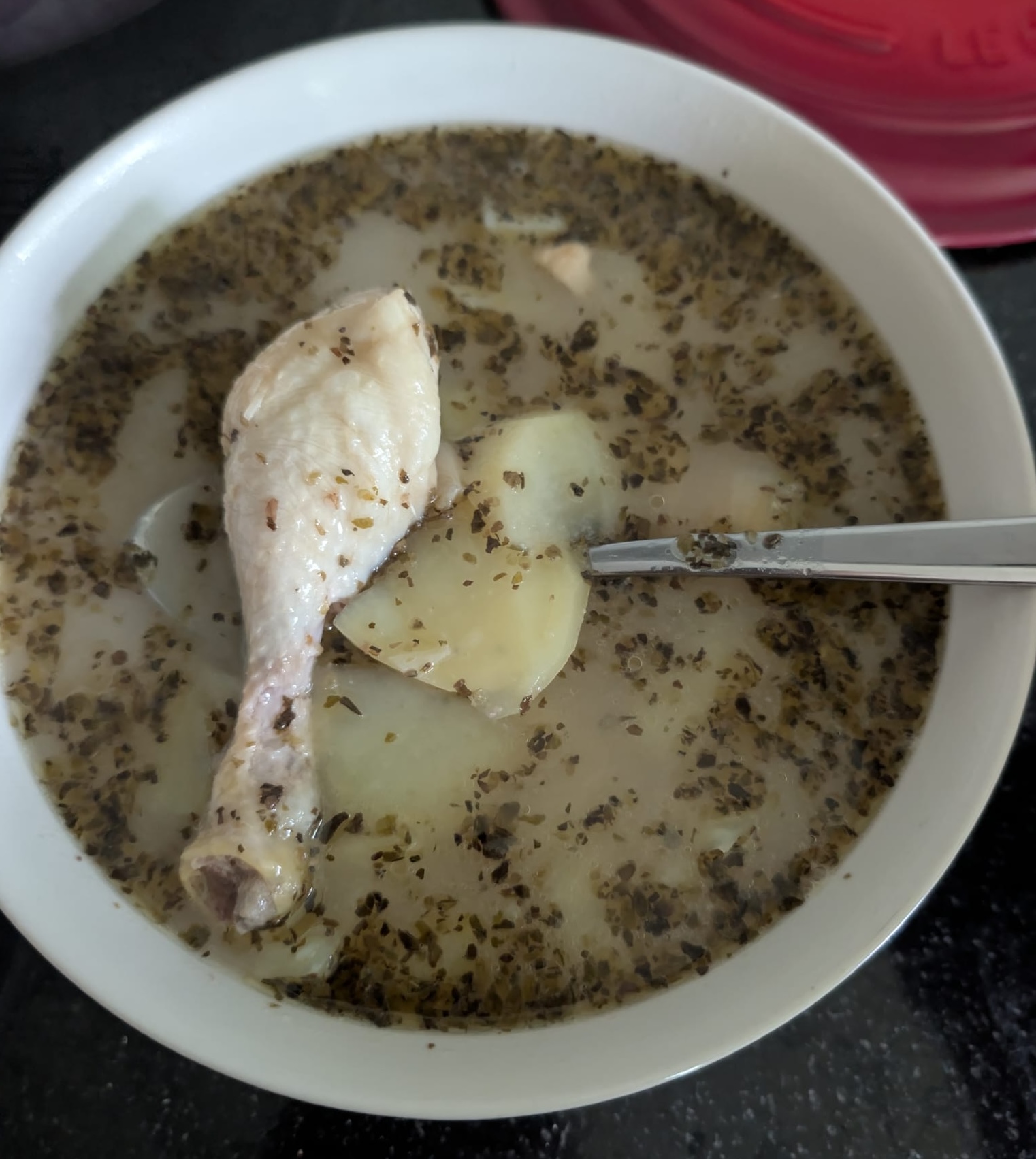
Upload a clear food photo where the main dish is easy to recognize. Images with one dominant item, good lighting and limited background clutter give the AI a stronger reference for the final icon.
- 2
Choose the icon style according to the final use. Flat and semi-flat styles work well for app interfaces, cute sticker is better for social content, retro diner fits nostalgic branding, and bold outline cartoon creates a playful graphic result.
- 3
Copy the generated prompt together with the uploaded image into your preferred AI image tool. Keep the identity rules, white background requirement and negative prompt so the model creates one isolated icon instead of a poster or food scene.
Best use cases
Creating consistent food category icons for a restaurant website, recipe blog, delivery app mockup or digital menu.
Turning real product or dish photos into cleaner visual assets when photographic backgrounds are too messy for design use.
Building playful social media visuals, sticker-style food graphics or icon sets for food brands and creators.
Tips for better results
Use source photos where the food is not heavily covered by hands, packaging or utensils unless those elements are essential to recognition.
For a cleaner icon set, reuse the same icon style and aspect ratio across several foods so the final assets feel like part of the same collection.
If the result keeps too much plate or table detail, regenerate with a simpler crop or emphasize the isolated white background and single-icon rules.
Common mistakes to avoid
Using a crowded table photo with several dishes can confuse the model and produce a mixed icon instead of the intended food.
Removing the negative prompt often leads to text, logos, menu boards, packaging or decorative backgrounds that make the icon harder to reuse.
Choosing a very complex style for a small icon can reduce readability, especially when the dish already has many ingredients or tiny details.
Final recommendation
Use this prompt when you want a polished food icon based on a real dish, not a generic illustration. A clear source image, a consistent icon style and the full structured prompt will usually produce the most reusable result.